BingoPlus App Not Loading? Identify the Problem First
If the BingoPlus app does not open normally, first identify what happens after you launch it. Different symptoms can point to different causes.
The app does not open at all.
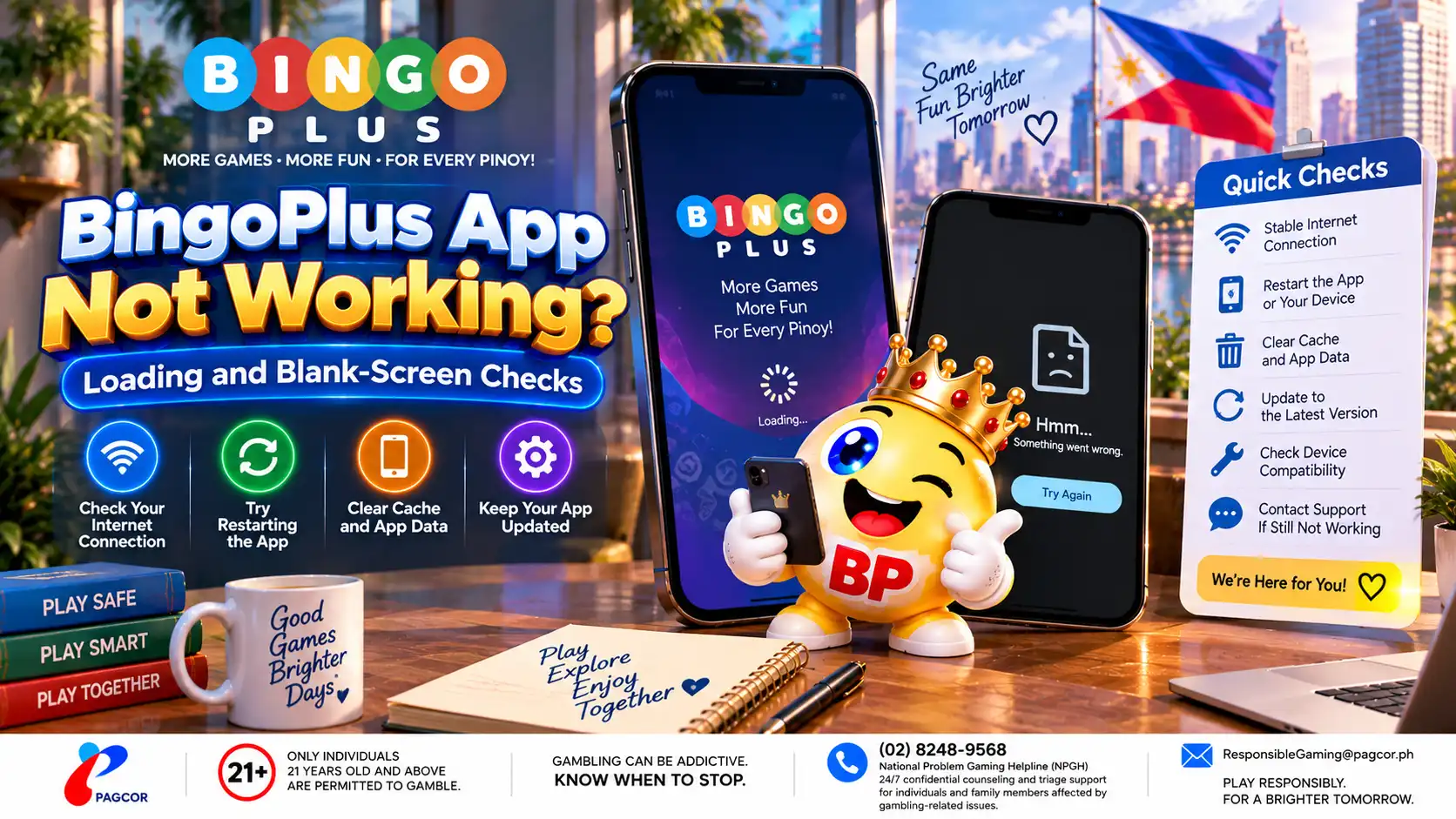
The app remains on the startup or loading screen.
The app opens but displays a blank or incomplete page.
The sign-in page loads but does not respond.
Some sections work while another page continues loading.
The app works on Wi-Fi but not on mobile data, or the reverse.
Before changing account settings or reinstalling the app, close it completely and open it once more. Also check whether other websites and apps can connect normally.
If the problem affects only BingoPlus while the rest of the device works normally, continue with the app-specific checks below.
Check the Internet Connection
A loading screen or blank page can occur when the app opens but cannot complete a network request.
Confirm that the device has an active internet connection.
Try switching between Wi-Fi and mobile data to see whether the behavior changes.
If you are using public or restricted Wi-Fi, try a trusted connection instead.
Temporarily disable a VPN, proxy or network-filtering service if one is active and test again.
Turn Airplane Mode on briefly and then off to reconnect the device to the network.
If the app works on one connection but consistently fails on another, the problem may be related to that network rather than the BingoPlus account.
Do not repeatedly submit sign-in, verification or payment requests while the connection is unstable.
Check the App Version and Device
An outdated app build or device software can sometimes cause pages to load incorrectly.
Check whether a newer official version of the BingoPlus app is available through an official BingoPlus source.
Restart the device before testing the app again.
Confirm that the device has sufficient free storage.
Install pending operating-system updates when appropriate for your device.
Avoid downloading replacement APK files or installation packages from unknown websites.
If the problem began immediately after an app or system update, note the version and approximate time the issue started. This information can be useful if official support needs to investigate the problem.
What to Check When the App Shows a Blank Screen
If BingoPlus opens but displays a blank, partially rendered or continuously loading page, stored app data or an interrupted session may be involved.
Close the app completely and reopen it.
Restart the device and test again.
Check that the device date and time are set correctly.
If your device provides a safe option to clear temporary app cache, clear the cache and reopen the app.
Be careful with options labelled Clear Data, Clear Storage or similar. These actions may remove locally stored app information and can require you to sign in again.
Before clearing app storage or reinstalling the app, make sure you can access the account information and verification method required to sign in again.
Before Reinstalling the BingoPlus App
Reinstallation should not be the first troubleshooting step.
Before removing the current app, confirm that you know how to access the official BingoPlus download source and that you can complete account verification again if required.
Do not install a package simply because it appears in a search result, advertisement, message or third-party download page. An unofficial installation file may not be the current BingoPlus app and could expose account information.
If you reinstall the app, obtain the installation package or store listing only through a verified BingoPlus access route.
After installation, confirm that the app opens normally before entering sensitive account information.
When to Contact BingoPlus Support
If the app continues to show a blank screen, remains stuck while loading or closes unexpectedly after the checks above, use an official BingoPlus support channel.
Before contacting support, note:
Your device model.
Your operating-system version.
The BingoPlus app version, if visible.
Whether you were using Wi-Fi or mobile data.
What appeared on the screen when the problem occurred.
The approximate time the issue started.
Any error message or error code displayed.
A screenshot can be useful, but remove or hide passwords, PINs, verification codes, account balances and other sensitive information before sharing it.
Use only an official BingoPlus support route. Support troubleshooting should not require you to disclose your password, PIN or one-time verification code.
Sources & references
Review: Reviewed for app loading and blank-screen troubleshooting, device and network guidance, official app access, account-safety precautions and current BingoPlus support information.